PIM dashboard
PIM dashboard
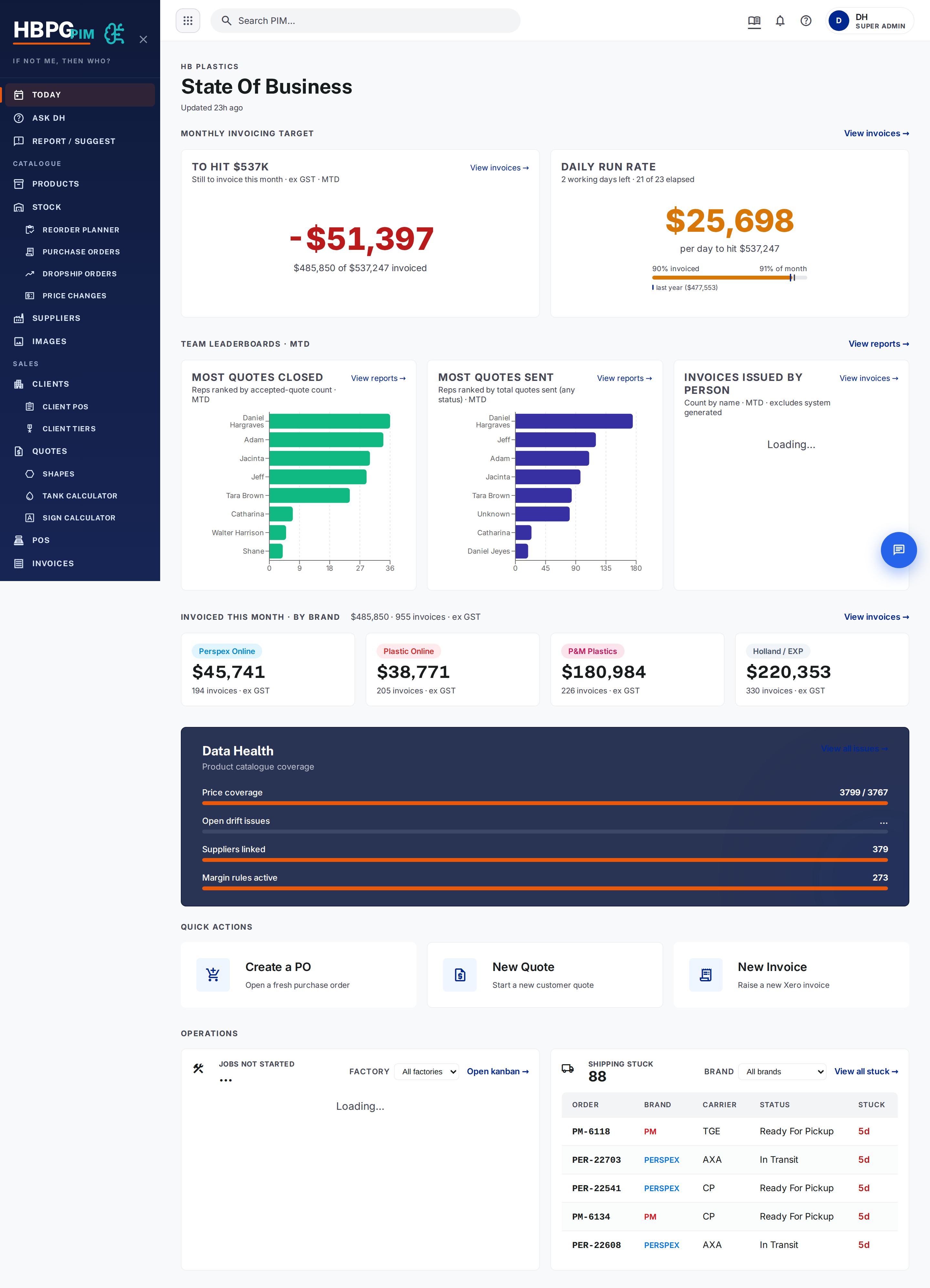
What it is
The PIM (Product Information Management) at pim.hbplastics.com.au is
the single source of truth for products, prices and images. Both websites
(Perspex Online, Plastic Online) read their products and prices from here — so
what you set in the PIM is what customers see.
Two words to know:
- Master product — the real product record. One per variant (each sheet size / rod diameter / adhesive size is its own master product). It holds the SKU, material, price, cut-to-size rate, and image.
- Channel link — a link that publishes a master product onto a website. Channel 2 = Perspex Online, 3 = Plastic Online.
The #1 “why isn’t this product showing online?” cause: the master product has no channel link for that store. The product exists, but nothing publishes it. Add the channel link (channel 2 for Perspex, 3 for Plastic Online).
How to find a product
Use the Products list search — filter by material, form (sheet/rod/tube), colour, thickness, size, or brand, or free-text search.
The list is built from a combined view, so a brand-new field occasionally won’t appear in the list straight away even though it’s on the product’s detail page. The detail page is the source of truth.
How to set or adjust a price
- Open the master product.
- Edit the RRP (ex-GST) — prices are always held ex-GST; the GST-inc figure is worked out for you.
- The list shows the buy price (from the preferred supplier) and the margin, so you can see the effect.
How cut-to-size (CTS) pricing works
Each stock sheet carries its own CTS rate. When a customer orders a cut, the system picks the smallest stock sheet the cut fits on, prices it by area, and caps it at the full-sheet price — a cut never costs more than the whole sheet.
How to manage product images
- The product’s canonical image is stored in our media storage (R2).
- You can upload an image by SKU, import a product’s existing website photo, or assign one image to a whole family (same material + colour + form) of products that have none.
How to publish a product to a website
Create a channel link (channel 2 = Perspex Online, 3 = Plastic Online) under the right website parent product. Without it the storefront page has nothing to buy (see the callout above).
Gotchas
- “Which website” ≠ “which brand”. PIM channel ids (2/3) are not the Pipedrive brand ids (33/34). See Brand IDs.
- Prices are ex-GST everywhere in the PIM; GST-inc is computed.
- To change who receives a client’s invoices, set the flag on the client’s contact (see Invoicing), not in the PIM price fields.
Common questions
- A product isn’t showing on the website. It’s almost always a missing channel link — add it.
- I changed a price — is the website updated? Yes, the storefront reads live from the PIM.
TODO: confirm exact screen names / button labels with a screenshot pass of
pim.hbplastics.com.au, and whether margin is shown as % or $.
Who to tell if it breaks
Tell Daniel or flag in #whats-new.
Derived from: the hbplastics-pim skill and product-master-worker. If this looks wrong, the source changed — update the source and re-generate, don’t just patch this page.